Settings
Path: /settings
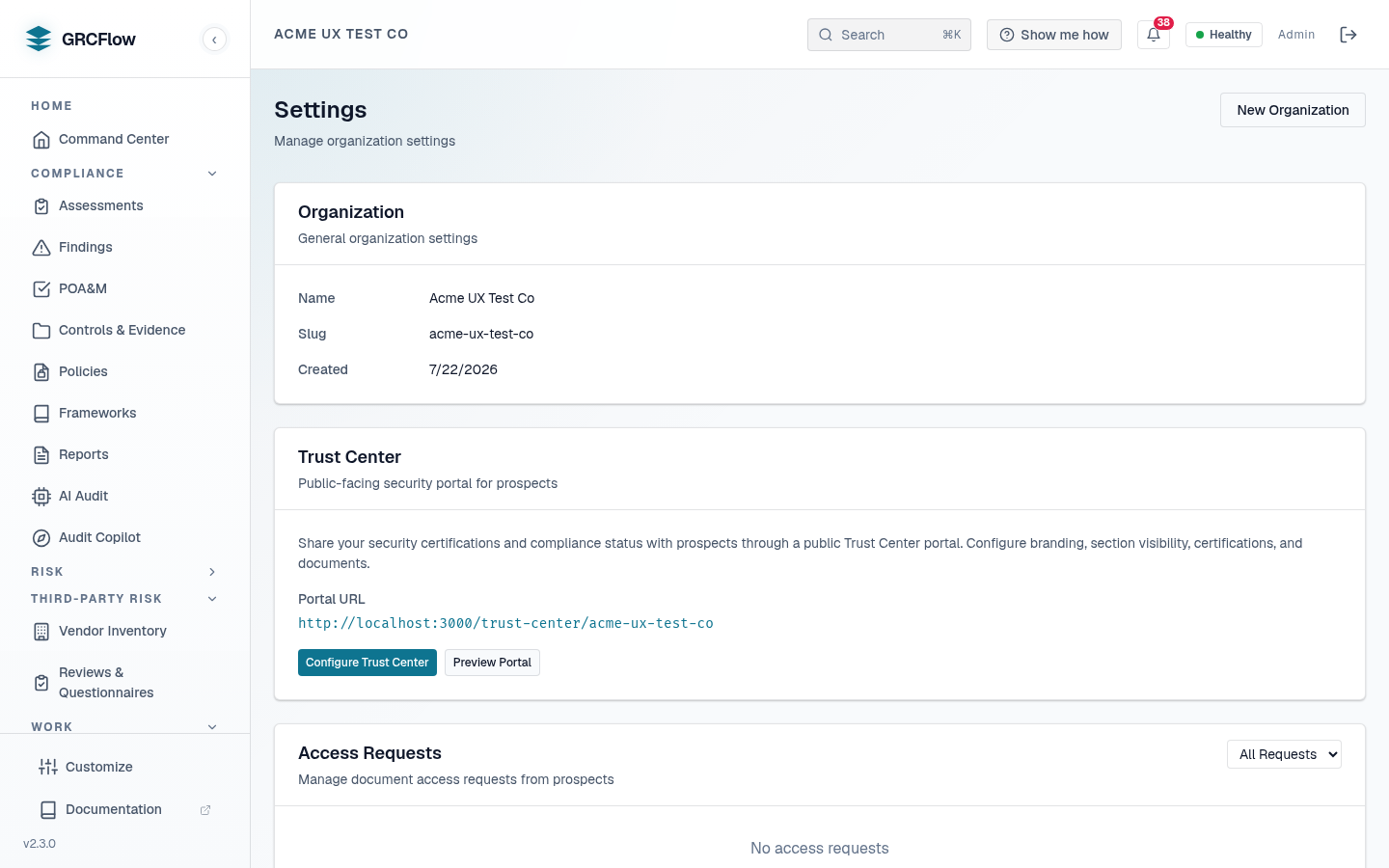
Organization settings, Trust Center configuration, and access request management.
Sections
- Organization — View and edit org name, slug, and creation date. Click New Organization to create additional organizations.
- Trust Center — Configure the public-facing security portal. Set branding, visibility, and portal URL. Click Configure Trust Center to customize.
- Access Requests — Manage document access requests from prospects who visited your Trust Center.
Users & Roles
Organization members are invited and managed from the Users page in the System group of the sidebar. Each member holds one of five roles, listed highest to lowest:
| Role | Intended for |
|---|---|
admin |
Full access, including organization and system management |
compliance_manager |
Runs assessments and manages the compliance program |
manager |
Management-level access (alias role at the same tier as compliance manager) |
auditor |
Read-only access for audit purposes |
viewer |
Limited read-only access |
Seat limits from your license are enforced at user creation and invitation.
External auditor grants
External auditors do not need a member seat. An auditor grant invites an outside auditor (by email, with a one-time accept token) into a workspace scoped to a single assessment; every grant carries an expiry (see the Auditor Portal). Two access levels:
auditor_readonly— view-only access to the granted scope.auditor_commenter— view plus the ability to leave comments.
Evidence shown to grant holders streams inline-only (downloads are denied and the denial is audit-logged), and raster images are watermarked with the auditor's email and a timestamp.